
DISCO is widely used by music supervisors, sync teams, labels, and publishers. With Cyanite, you can enrich your DISCO catalog with more detailed metadata about what’s actually happening in the recording.
In this guide, we’ll show you how to export your catalog, tag it with Cyanite, and bring the results back into DISCO, either within its existing tag categories or as searchable custom fields.
Once that’s done, you’ll have more detailed, audio-derived metadata to work with without changing how you manage your catalog.
What is DISCO and how does it intersect with Cyanite?
DISCO is a music management and sharing platform designed around the day-to-day workflows of music supervisors, publishers, sync teams, and catalog owners. It provides tools for organizing, searching, and sharing music, including its own auto-tagging functionality designed around quick, high-level insights.
Cyanite focuses on a deeper level of tagging for music catalogs that need more nuanced and granular music understanding.
For teams already using DISCO, Cyanite provides more detailed insights about genres, moods, instrumentation, and other musical characteristics to support more nuanced and complex catalog searches.
Before you begin, make sure you have:
- A DISCO Plus account to update existing tag categories, or a DISCO Pro account if you also want to use custom fields
- Any custom fields you plan to use set up in your DISCO Pro account
- An export of the catalog you want to tag, including the fields you want to update and download links for the audio files you want Cyanite to analyze
Contact DISCO Support to request your catalog export, including MP3 download links. If you’re using custom fields, ensure those are set up before the export.
How long does it take?
The process includes time for any custom fields to be set up with DISCO Support, followed by the catalog export, which takes around one business day. Running the Cyanite analysis will take around 30 seconds per file, with up to 60 files being analyzed simultaneously. Cyanite automatically populates your DISCO catalog export sheet with the new tags and provides it for download. Once you send the completed sheet back to DISCO, the import takes around two to three business days.
How Cyanite augments DISCO’s auto-tagging
DISCO’s tagging vocabulary is organized into seven categories, with 150 active preset tags based on terms commonly used by music supervisors and sync teams:
- Tempo: Downtempo, Midtempo, Uptempo, Fast, and Slow
- Mood/feel: Anthemic, Atmospheric, Cinematic, Dreamy, Energetic, Hopeful, and Uplifting
- Genre: Ambient, Classical, Electronic, Hip hop/rap, Indie, Pop, and Rock
- Vocals: A cappella, Background vocals, Choir, Duet, Female vocal, Instrumental, and Male vocal
- Lyrical theme: Adventure, Celebration, Discovery, Heartbreak, Love, Nostalgia, and Success
- Instrument: Acoustic guitar, Bass, Drums, Electric guitar, Piano, Strings, and Synth
- Type: Cover, Demo, One stop, Rerecord, Score, Sound design, and Soundtrack
Cyanite covers 32 categories and some overlap with the categories already available in DISCO but provide more detail:
- Mood: 173 tags across Mood, Simple Mood, Character, Movement, and Energy Level
- Genre: 23 main genres, 57 subgenres, and 2,364 free genres
- Instrument: 46 tags
- Lyrical theme: 59 tags
- Tempo: five tags
- Vocals: 15 Vocal Style tags, plus Vocal Gender and Vocal Presence
Other Cyanite categories describe properties that sit outside DISCO’s seven categories, such as:
- Musical Era: the period associated with the sound
- Key and Meter: the track’s tonal center and rhythmic structure
- Valence and Arousal: how positive or negative, and how calm or intense, a track feels
- Most Significant Part: the timestamp of the section Cyanite considers most representative of the track
These types of metadata can be mapped to custom fields, which give them a dedicated place in your catalog outside the standard tag categories. To see how custom fields work in DISCO, take a look at this video walkthrough:
This level of detail can reduce manual tagging in DISCO while giving you flexibility in how the metadata is organized. Cyanite tags can be mapped to your preferred DISCO fields. For example, Cyanite’s Free Genre tags can populate DISCO’s existing Genre category or a custom field, depending on how you want to structure your metadata.
Tag the DISCO export with Cyanite
With your DISCO export ready, you can start the tagging process. Here’s how it works.
Unlock the tool
Request an API key from Cyanite. Once you receive it by email, enter it to unlock the tool. The token stays active for your browser session and clears when you close the tab.
Load your export sheet
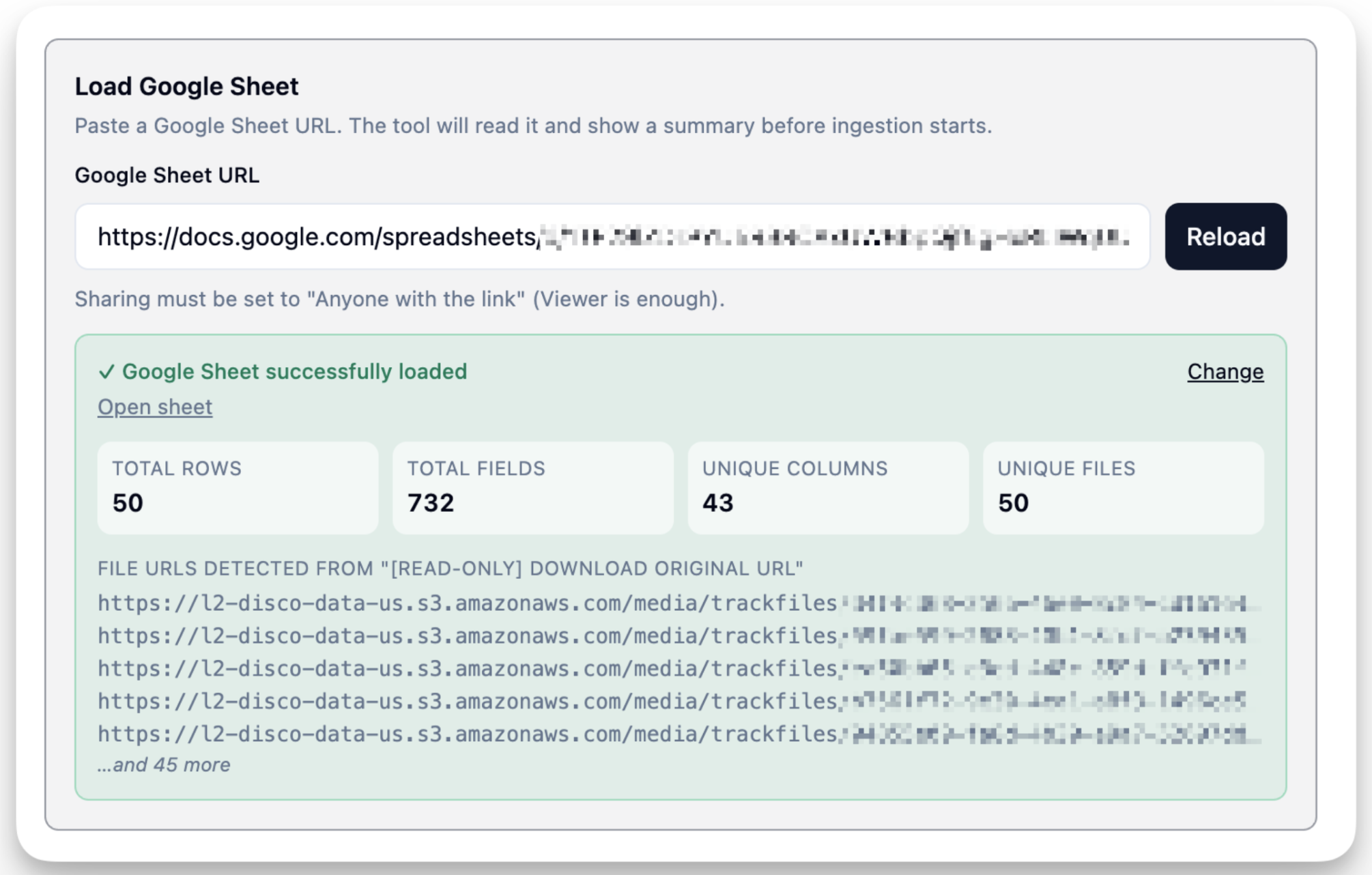
Paste the Google Sheets URL and click “Read Google Sheet.” Make sure sharing is set to “Anyone with the link.” Viewer access is enough.
Before tagging starts, the tool will read the sheet and show a summary, including the total rows, fields, unique columns, and unique files, plus the file URLs it detected.
Run the analysis
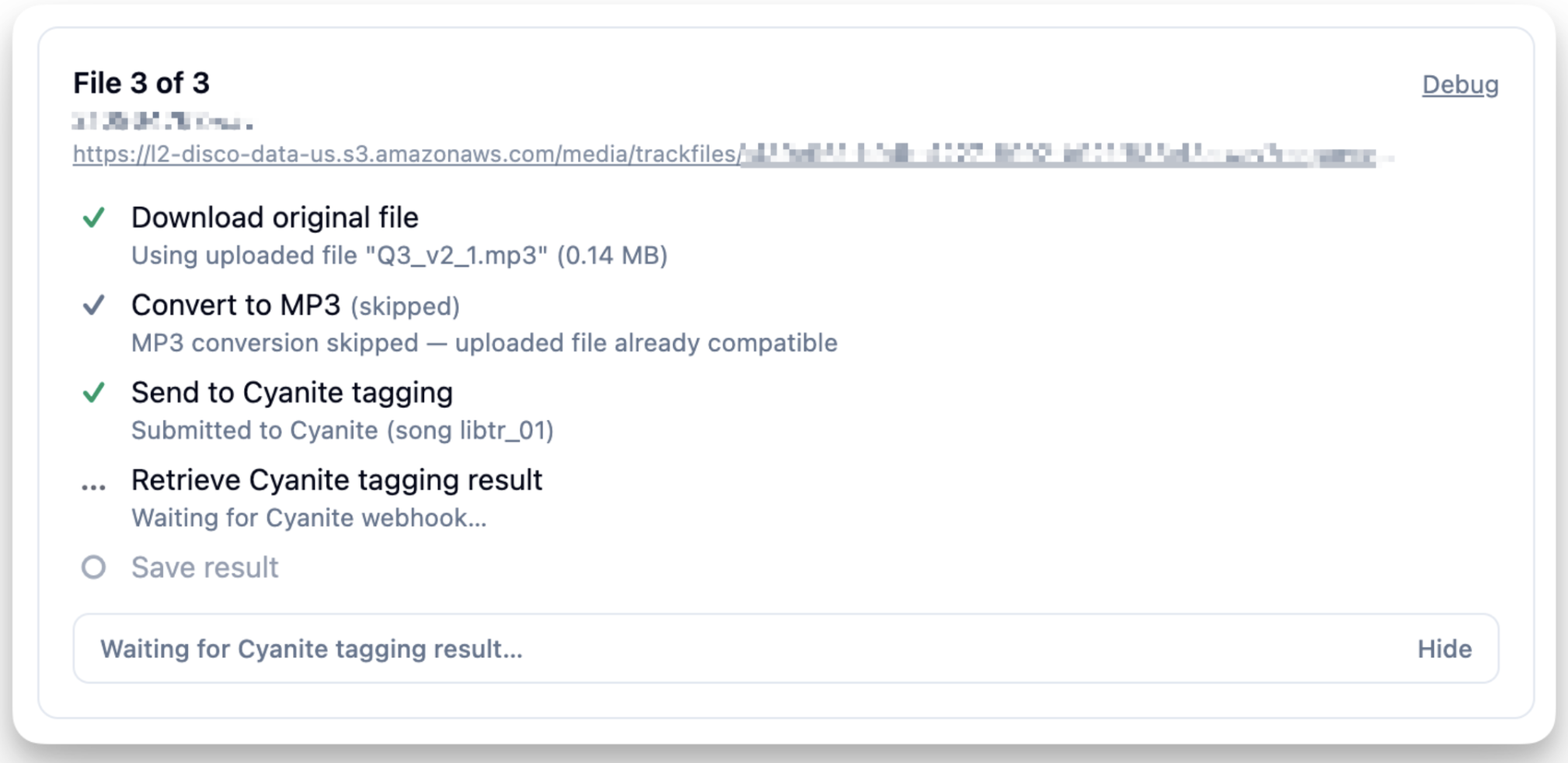
Click “Run Cyanite Tagging.” Each audio file is downloaded, converted to MP3 if needed, and sent to Cyanite for analysis.
You can follow the job in two progress panels. “Submission progress” shows how many files have been downloaded, converted, or submitted, and how many remain. “Analysis progress” shows how many are waiting for Cyanite, completed, or failed. You can select “Stop on first error” if you want the job to stop when a file fails.
Handle any tracks that fail
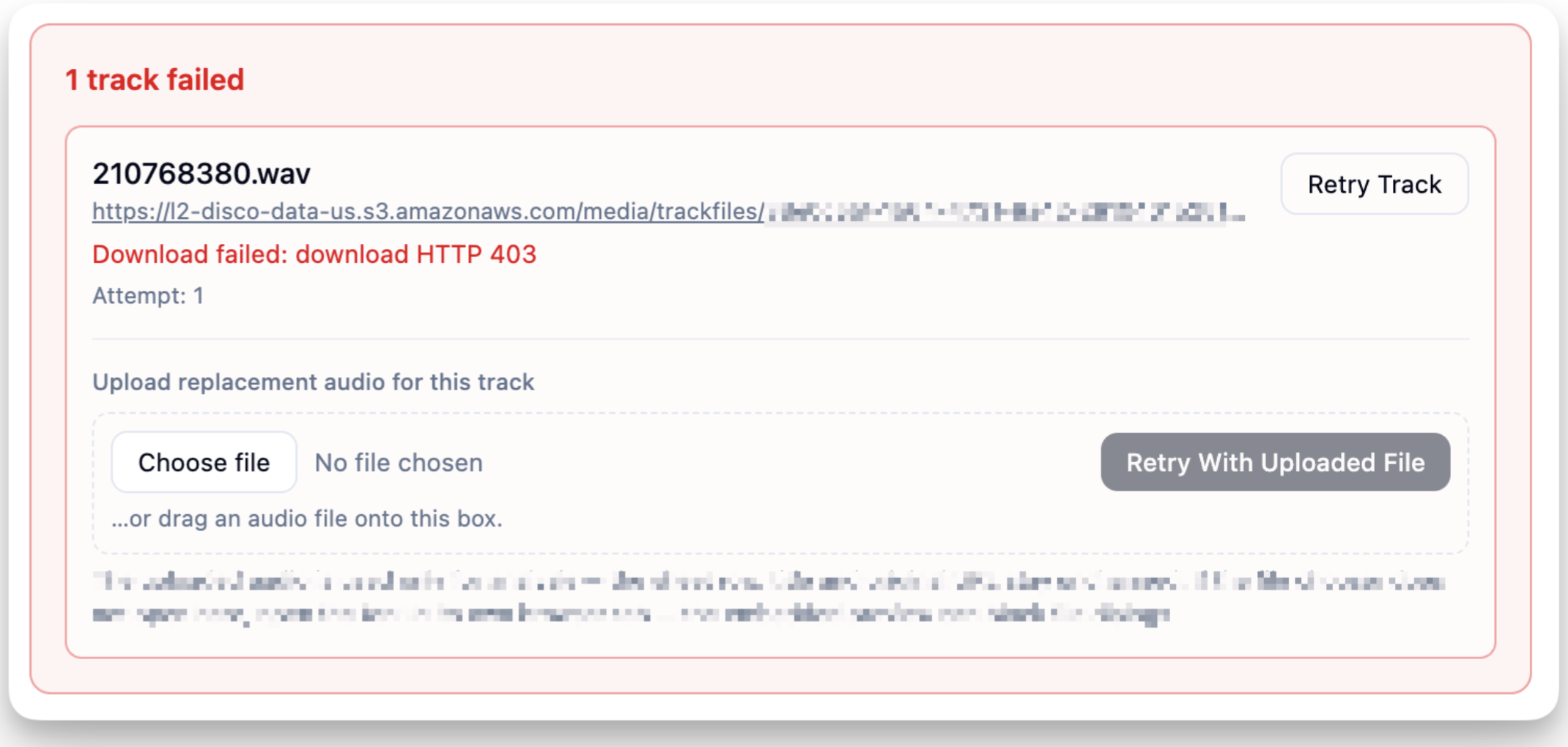
If a track fails, the tool shows the reason so you can address the issue. You can retry individual tracks, retry all failed tracks at once, or upload a replacement audio file for a specific track. If you use a replacement file, the sheet row, track title, and original URL stay unchanged.
Review the results
Once a track is complete, you can review the raw tags returned by Cyanite before generating the enriched DISCO export sheet.
Generate the enriched CSV
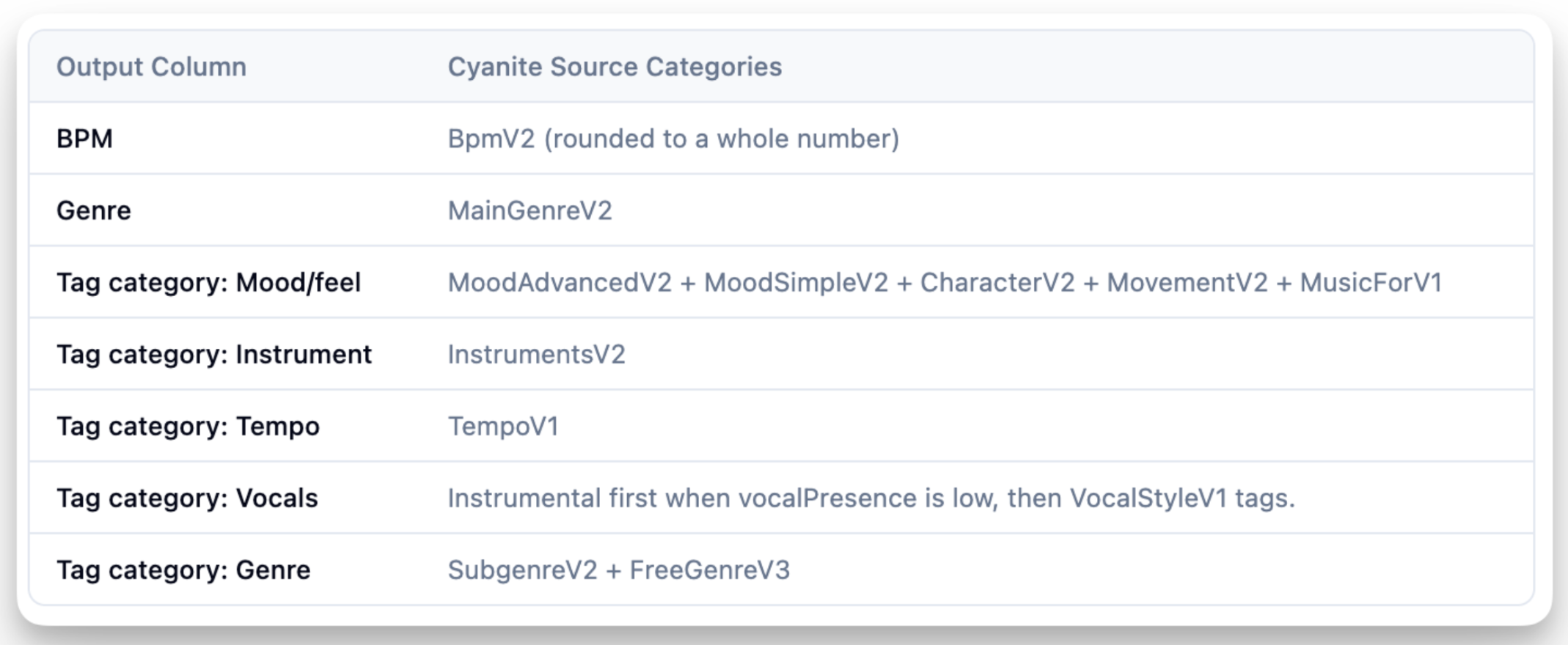
Before generating the CSV, review how Cyanite categories are mapped to columns in your DISCO export. The mapping can be configured based on which DISCO categories or custom fields you want to use.
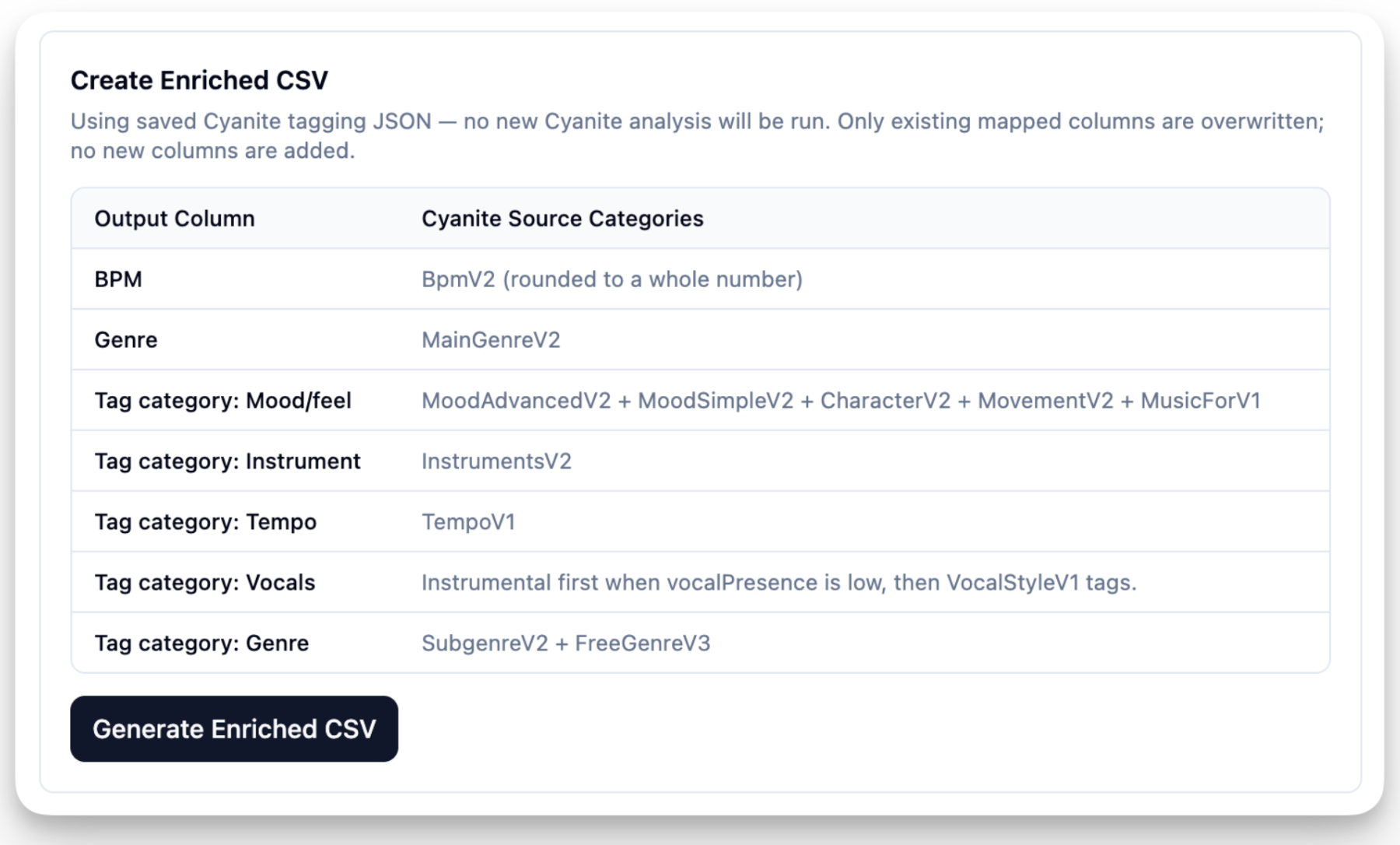
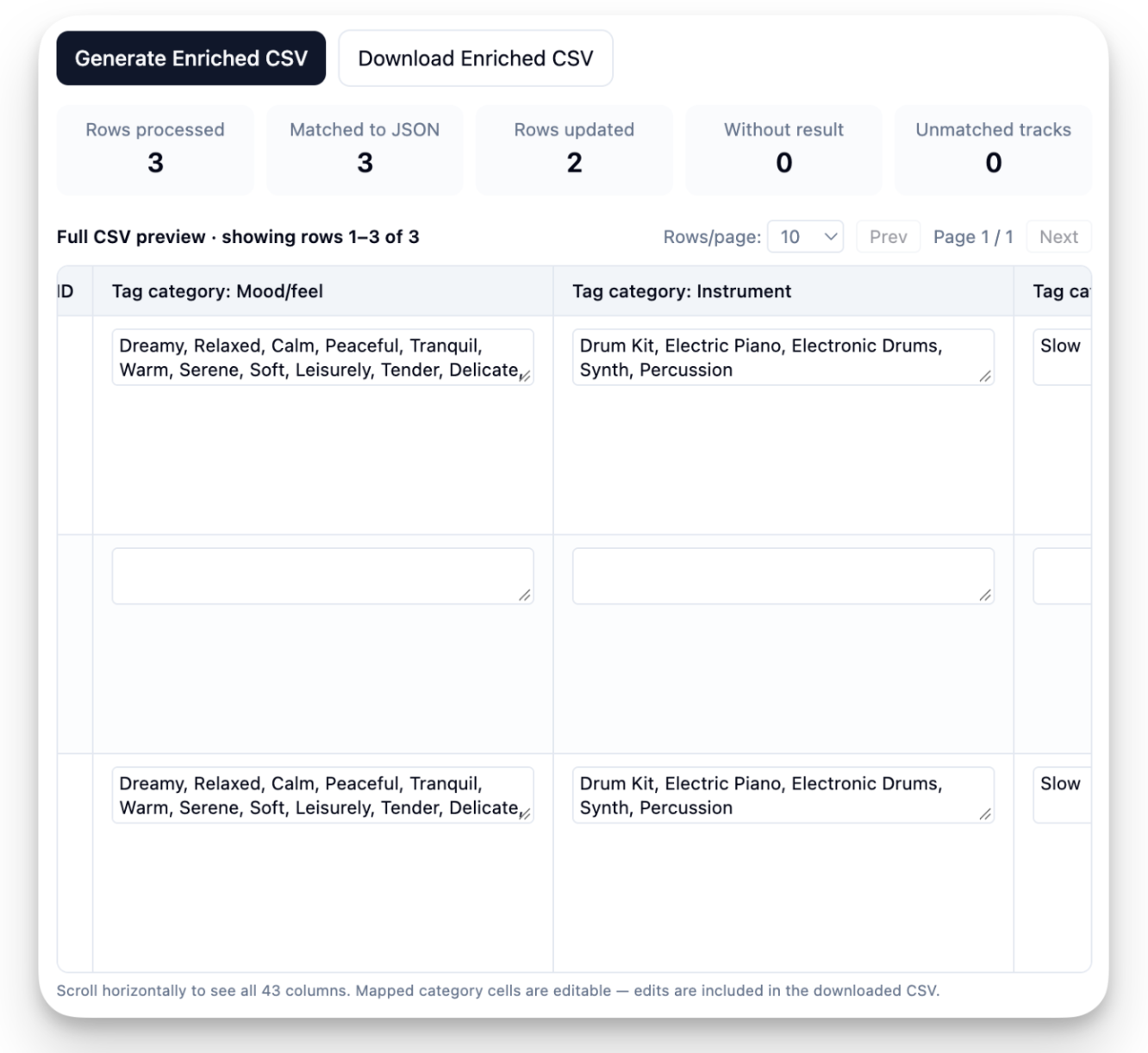
You can edit any tag values in the preview before generating the file. The tool only overwrites existing mapped columns and doesn’t add new ones, so any custom fields you want to use need to be set up in DISCO first.
Once everything looks right, generate and download the enriched CSV. It keeps the structure of the original DISCO export so it can be sent back to DISCO for import.
Import the enriched file back into DISCO
When you’re happy with the enriched CSV, it’s ready to go back into DISCO. The DISCO team handles the import, so there are a few details to check before you send the file over.
Check the file against your custom fields
Make sure the enriched file matches the original DISCO export, including the file name, columns, and structure. The only difference should be that the fields mapped during the tagging process are now populated with Cyanite metadata.
Send it to DISCO Support
Send the enriched CSV to DISCO Support and specify which columns you edited and which fields they correspond to. While the import is pending, avoid editing those same fields in DISCO, as the imported values will overwrite any changes made there.
Confirm the matching key
DISCO requires the DISCO Track ID when re-importing metadata updates. Make sure the Track IDs from the original export remain unchanged in the enriched file.
Verify it landed
Once the import is complete, check that the metadata appears where expected. Tags should appear on the Tags tab and be searchable through the main search box or the Track tags filter in Advanced Search. Custom field values should appear on the Custom tab.
While Track tags cannot travel between DISCOs as standalone tags, you can enable a setting that writes them to the Comments field when tracks are downloaded or saved to another DISCO. This allows Cyanite tags mapped to DISCO’s tag categories to travel with the track as metadata.
Make Cyanite part of your DISCO setup
Using Cyanite with DISCO gives you a way to add audio-derived metadata to the catalog you already manage there. The process keeps DISCO at the center of your music management while giving you more detail to work with when searching your catalog.
Tracks analyzed through this workflow also remain in Cyanite with their original tags. You can return to those results later, before any DISCO-specific mapping or edits, and use the analysis for other workflows in Cyanite without analyzing the tracks again.
If you’re considering this workflow for your DISCO catalog, book a call with Pedro Ricardo to discuss how it could work with your setup.
FAQs
What’s the difference between tagging a DISCO catalog with Cyanite and DISCO’s AIMS integration?
Tagging your DISCO catalog with Cyanite adds audio-derived metadata to your existing tags and custom fields. The AIMS integration focuses on search and discovery inside DISCO using Prompt Search and Similarity Search to find music.
What is the difference between DISCO and Cyanite?
DISCO is a platform for managing, searching, and sharing music, while Cyanite focuses on AI-powered music understanding. Cyanite analyzes music to generate structured metadata that can enrich the catalog you already manage in DISCO.
Do DISCO Track tags travel between accounts?
Not as standalone tags. However, you can enable a setting that writes Track tags to the Comments field when tracks are downloaded or saved to another DISCO.
Can supervisors search these fields in my catalog?
Yes. Tags and custom fields are searchable within DISCO. Tags don’t transfer as standalone tags but can be written to the Comments field when sharing tracks if enabled. Custom fields remain internal.
Do the tags travel when a track is downloaded?
Track tags can travel with the audio file if your DISCO Business Settings write native tags to the Comments metadata field. Custom fields don’t travel with a track when it’s shared to another DISCO account because they aren’t standard ID3 metadata fields.